How to Merge PDF Files Online — Safely, In the Right Order
PDF · Published 2026-11-05 · Updated 2026-11-15 · 6 min read · By Tool Magic Lab Editorial Team

Table of contents
Merging PDFs sounds trivial — and for three clean files it is. Real life adds complications: pages that arrive in the wrong order, a landscape spreadsheet page inside a portrait report, or a signed contract you should think twice about uploading to a stranger's server. This guide covers the straightforward job properly, including the checks that prevent the embarrassing versions.
Before you merge: the thirty-second audit
Open each file and note three things: page count, page orientation mix, and whether any file is password-protected or a scanned image rather than text. Protected files must be unlocked by their owner first (with the password — legitimate tools will not strip protection without it). Scanned files merge fine, but the result will not be searchable unless you run OCR, which is a separate, usually server-based step.
The merge, step by step
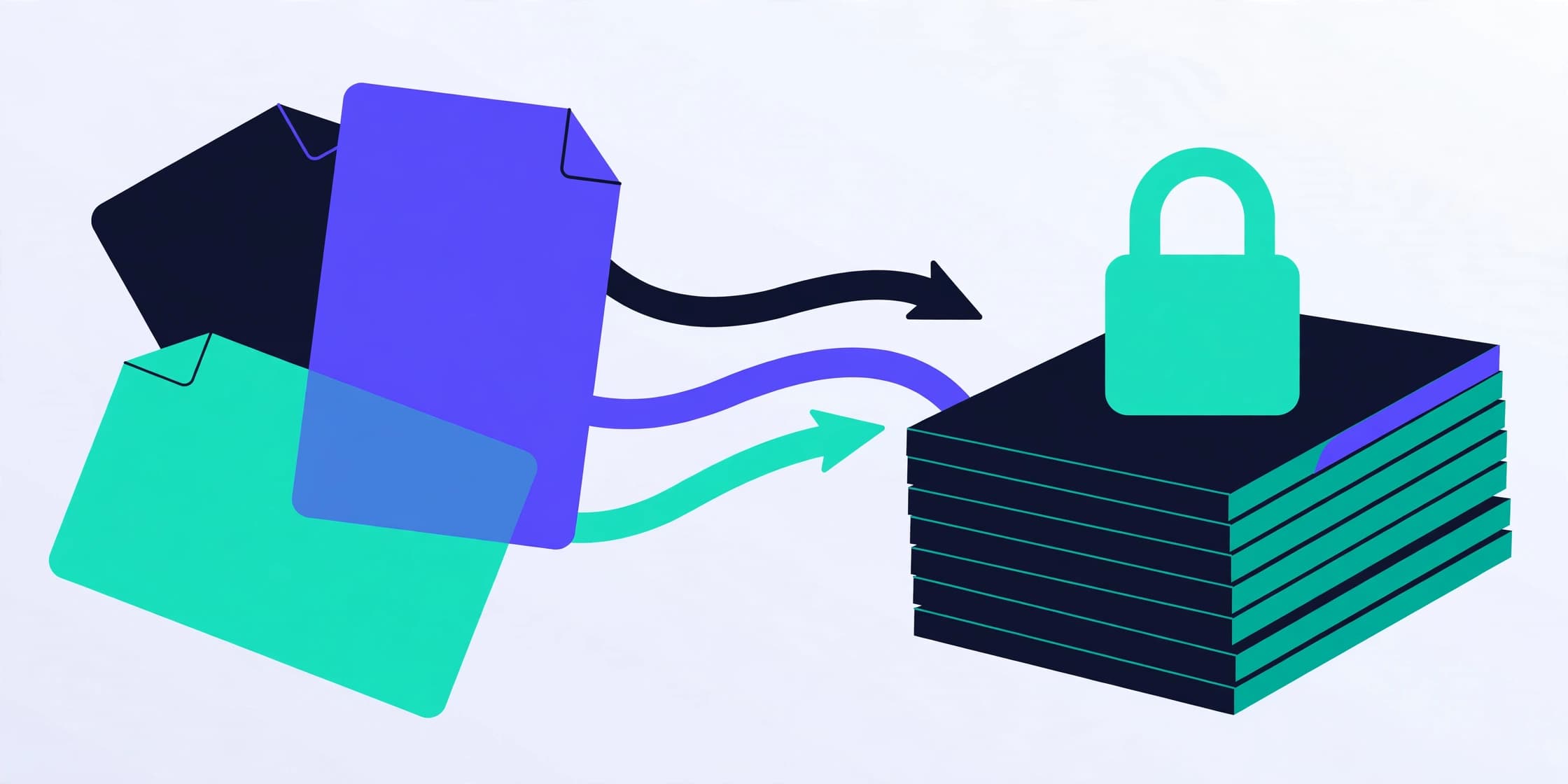
- Open the PDF Merger (/pdf/pdf-merger). It runs in your browser with pdf-lib — the files never leave your device, which is why it is the right choice for contracts, invoices and ID documents.
- Add the files in the order you want them, or add them all and drag them into sequence. Order is the number-one source of merged-document mistakes, and it is entirely yours to control.
- If one source has pages you do not need, split it first with the PDF Splitter and merge only the relevant part.
- Merge, then download and open the result. Check the page count equals the sum of the inputs, and flip through the joins — the first page of each source is where ordering errors hide.
- Rename the output meaningfully (2026-11-client-contract-signed.pdf beats merged.pdf in every future search).
Fixing the common failures
**Pages rotated sideways.** Sources scanned or exported with mixed orientation keep their rotation when merged. Fix after merging with the PDF Rotator, which turns selected pages permanently rather than relying on viewer settings.
**The file is huge.** Merging does not compress; ten image-heavy PDFs make one image-heavy PDF. Reduce afterwards — browser re-save removes some overhead, but serious compression of scanned files is server work, and any tool promising otherwise should show you the before/after numbers.
**Bookmarks and links vanished.** Simple mergers (including browser ones) rebuild the page tree and may drop outlines and internal links. If the document's navigation matters, merge in a full editor instead and treat the online tool as the quick option it is.
The privacy rule
Ask one question of any merge tool: where does the file go? If the answer involves an upload, the operator's retention policy is now part of your document's life. Browser-based merging removes the question entirely — the computation happens on your machine, and closing the tab ends the story. For confidential paperwork, that architecture matters more than any feature list. Our PDF Workflows That Stay Private article explains the model in depth.
Frequently asked questions
**Is there a page or file limit?** Browser merging is limited by your device's memory, not an artificial quota — dozens of ordinary documents are fine; a 2,000-page scanned archive is a desktop-editor job.
**Will the merged PDF be editable?** It remains a normal PDF — text stays text, though editing content (as opposed to pages) needs a PDF editor.
**Can I merge just some pages from each file?** Yes: split first, then merge the pieces. It is two extra minutes and far safer than deleting pages from a merged giant.
Written by the Tool Magic Lab Editorial Team. Tool Magic Lab content is produced with AI assistance and editorially reviewed for accuracy — see our AI Usage Disclosure and Editorial Policy.